


Home | 3DViewer Control | 3DViewer Plugin | 3DViewer Contents
3DViewer Control: Uninstall / Windows
If you want to remove the 3DViewer ActiveX Control for Microsoft Internet Explorer under Microsoft Windows again, please proceed as follows to ensure a complete deinstallation of the control (Please note: The screenshots are in German language at the moment - we apologize for the inconvenience.):
Internet Explorer 6
Internet Explorer 7
Internet Explorer 8
- Ensure that you are logged on as user with administrator rights.
- Exit all running applications, especially all browsers (Internet Explorer).
- Start the Internet Explorer with an empty page (about:blank).
- In the menu Tools click Internet options...
- In the dialog Internet options on tab General under group Temporary internet files click the button Settings...
- In the dialog Settings click the button Show objects...
- Now, within the explorer window, right-click the program file 3DViewer Control and select Delete from the context menu.
-
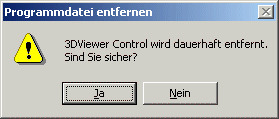
Confirm the question to delete the program file with Yes. - Close, one after the other by clicking the X on the top right corner, the explorer window, the dialog Settings, the dialog Internet options and the Internet Explorer.
- Ensure that you are logged on as user with administrator rights.
- Exit all running applications, especially all browsers (Internet Explorer).
- Start the Internet Explorer with an empty page (about:blank).
- In the menu Tools click Manage add-ons and then click Activate / deactivate add-ons.
-
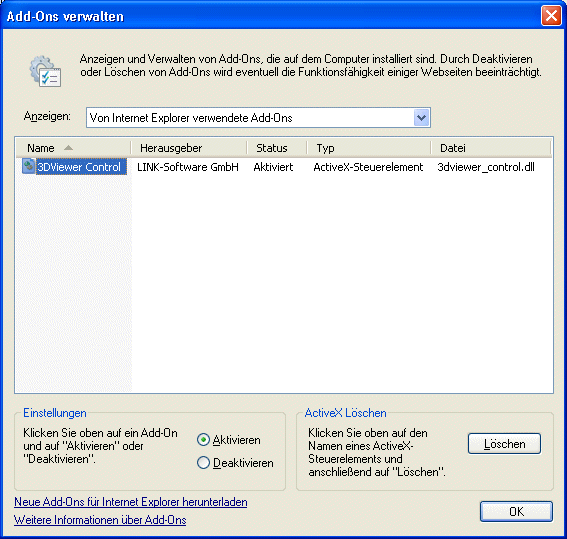
In the dialog Manage add-ons in Show: choose Add-ons used by Internet Explorer. - Within the list click onto the 3DViewer Control and afterwards in the group Delete ActiveX click onto the button Delete.
- Now close one after the other the dialog Manage add-ons by clicking the button OK and then the Internet Explorer by clicking onto the X at the top right.
- Ensure that you are logged on as user with administrator rights.
- Exit all running applications, especially all browsers (Internet Explorer).
- Start the Internet Explorer with an empty page (about:blank).
- In the menu Tools click Manage add-ons.
-

In the dialog Manage add-ons in Show: choose All add-ons. -
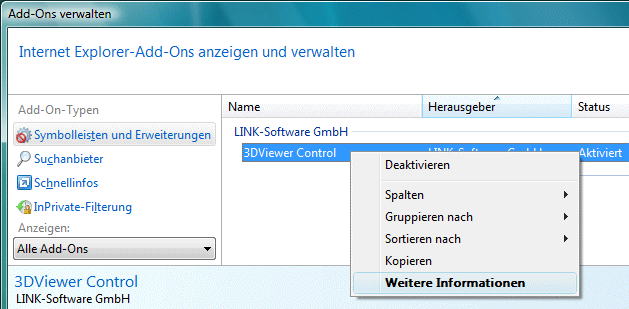
Within the list right-click onto the 3DViewer Control and then select Additional information in the context menu. -
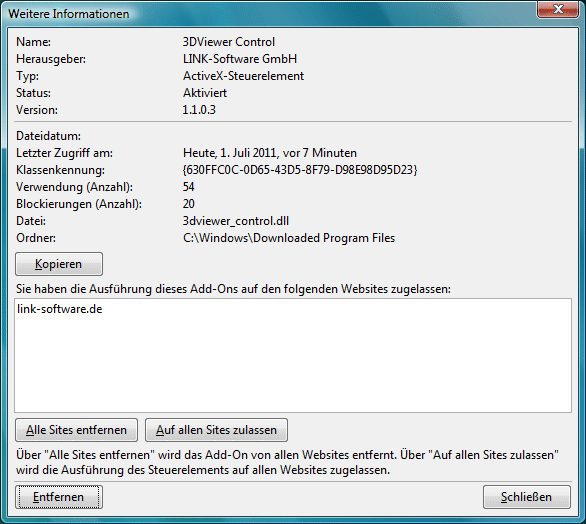
In the dialog Additional information click the button Delete in the bottom left corner. - Now click, one after the other, onto the button Close within the dialog Additional information and within the dialog Manage add-ons and afterwards onto the X at the top right corner of the Internet Explorer.